Registering Art
To register your art for a burn:
- Visit edit.dust.events
- Sign in with your email address
- You'll receive a verification code to confirm your identity
- Select the burn
From the list of options choose Register Art:
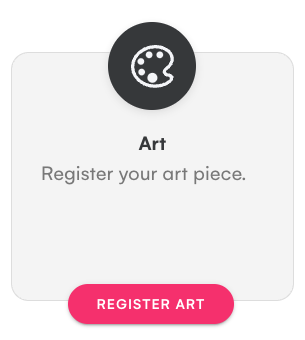
Registering Art
When registering, you'll need to provide:
- Art Name - Your art name or title
- Description - A description of your art and what burners can expect. This is shown to the public in the dust app.
- Art Image - A photo or artwork representing your installation. While optional, art with images stand out more in the app.
Your burn may have custom questions as part of registration, such as:
- Placement requirements
- Size and footprint
- Power needs
- Special requests or accommodation needs
Your answers to these questions are private and only visible to you and the burn's organizers—not to the public.
Click Save to submit your registration.
Once submitted, your art enters the review queue. The burn's organizers will review your submission and may publish it to the dust app after approval.
Changes to your Art
You can edit your art information even after submitting your registration:
- Visit edit.dust.events
- Sign in with your email
- Select
Art:
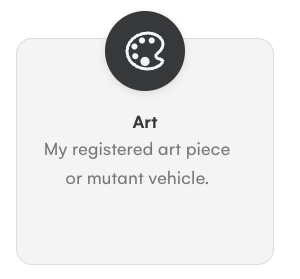
You'll see the art piece(s) you have registered:
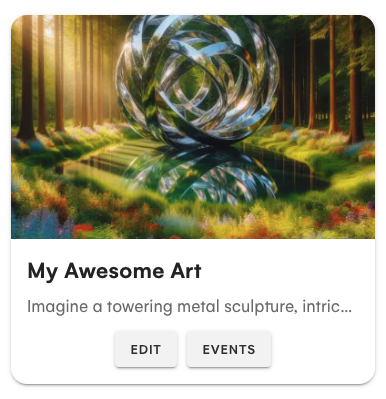
Adding other Art Leads
Click Edit and under the Art Owner(s) add any additional email addresses for leads who can then manage art information.
When you have added additional art owners they can see the art by signing into edit.dust.events. They may need to sign out and sign in again to see the art.
Events at your Art
Click Events to manage the events that are happening at your art piece.
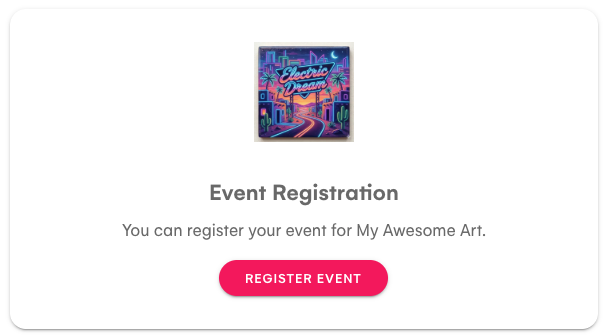
Click Add Event to add a new event, or click on one of the existing events to change the event. Note: Use Add Occurrence for events that repeat.
Review by Organizers
When you save changes the burn organizers will review any changes before they are published in the app.