6 posts tagged with "2026"

View All Tags

· 7 min read
Damian Tarnawsky

Whether this is your first time to the burn or you've used dust before, in 2026 we've added quite a few new features to the app. So please take a look through this guide for the dust app for Burning Man 2026!

The map

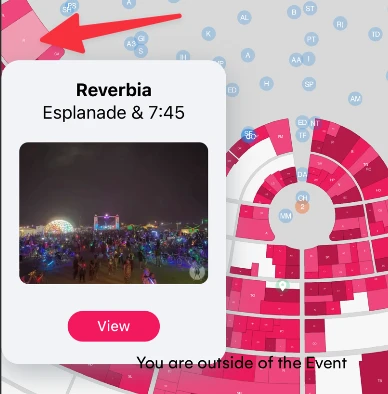
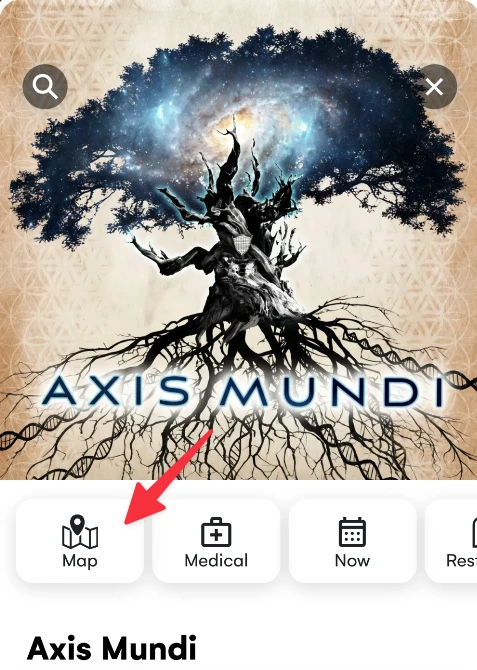
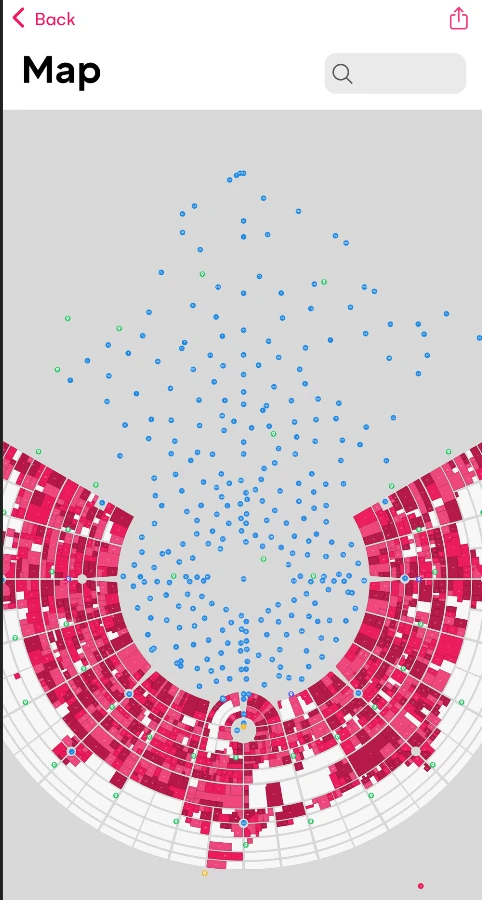
Camps, art, ice, medical and restrooms are visible on the map. Open the Home tab, tap the Map tile. Pan and zoom to see the full city. Tap to learn what is there. Camp boundaries appear in the app when gates open on August 30.
Map

Map detail

Map detail

Camps

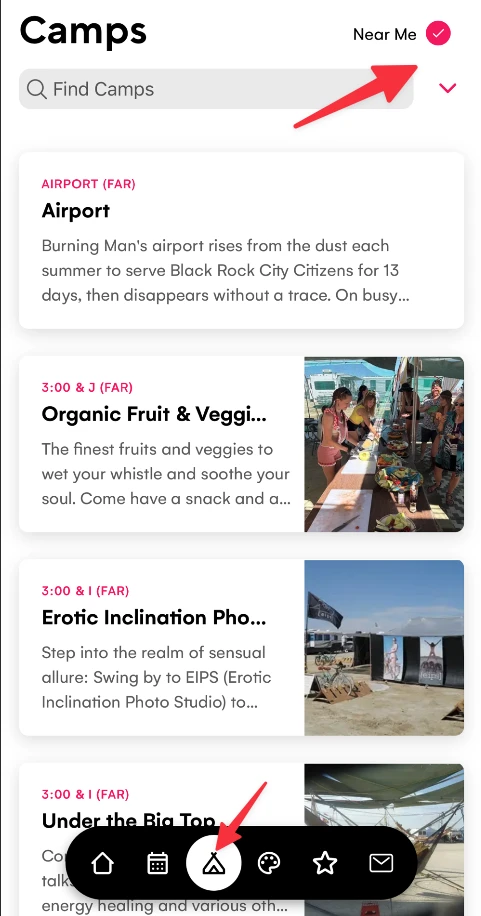
Use the Camps tab to search for a camp. Camp details include location info, events and parties. Press the Star on events to favorite and get a reminder of the event 30 minutes before it starts. The map shows the distance and direction to the camp from where you are.

Press "Near Me" to sort by the camps closest to you, press ⌄ and filter camps (eg for BRC Passport Camps)
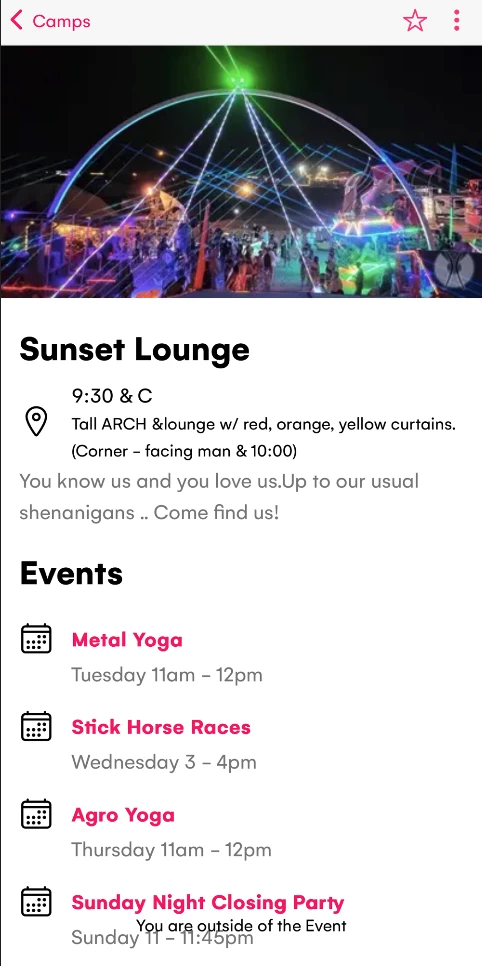
Search a camp

Search a camp detail

Events

Tap the Events tab and pick a day in the day selector. Tap the Event Type ⌄ and choose a category (eg Food). Tap the map icon at the top right and the screen switches to a map of the events for that day and type.

Press the Star next to events to quickly Favorite the event and get a notification reminder 30 minutes before the event.

Use the "Now" tab to show events happening right now, and the "Near Me" option to show events that are happening close to you.
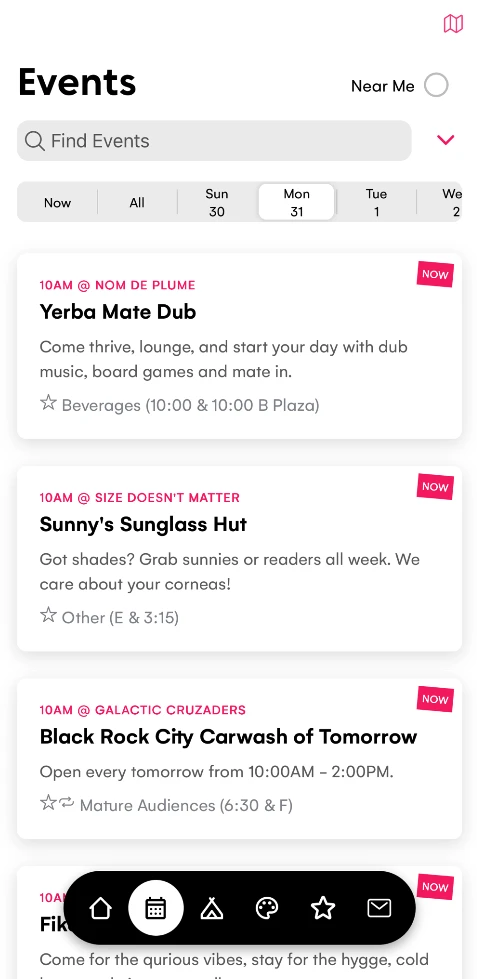
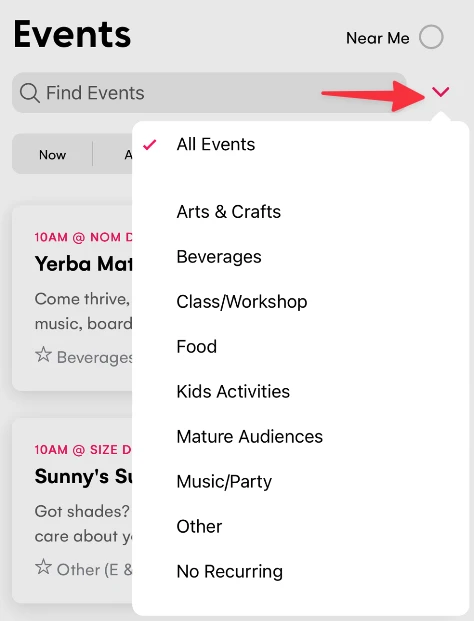
Events

Events

Events map

Events map

Art & Mutant Vehicles

Tap the Art tab and type a name in Find Art. Tap ⌄ and choose "Audio Tour" to show all Art with audio - play and it will also auto play the next audio track (great for the ride to the burn). Also tap ⌄ to filter by Mutant Vehicles or Art.

For 2026 Mutant Vehicles also have a listing of parties with lineups coming from Rock Star Librarian.
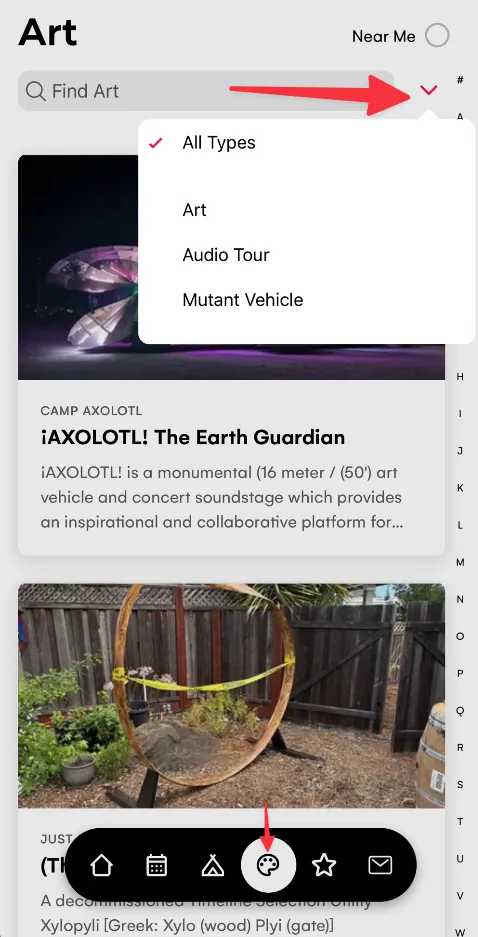
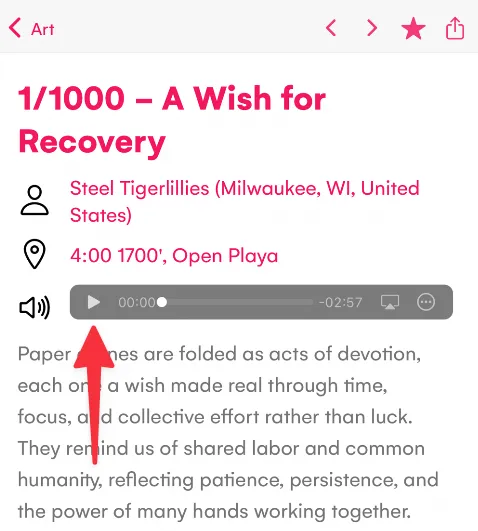
Audio tour

Mutant Vehicles filter

Favorites

Tap the star on anything you like. It lands in the Favorites tab. To send it to a friend, tap the ⋮ three-dot menu, then Share Favorites. A modal opens with a six-character ID and QR Code. Tap the share icon at the top right to send it. You can also choose Scan Favorites and scan the QR Code from your friends phone to download their favorite Events, Camps & Art.

You can also print the list or sync it to your calendar from the Favorites header.

If you have an Apple Watch tap Update Watch to send your Favorite events, camps, art, restrooms, ice & medical to the watch - this way you can leave your phone at camp.
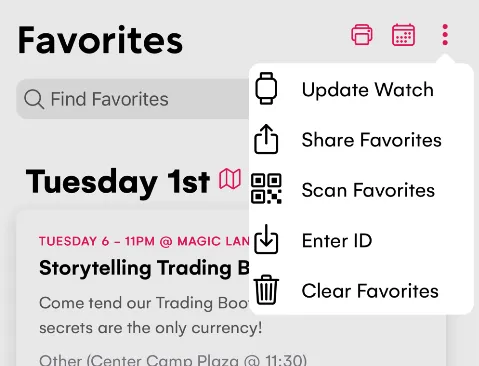
Favorites

Ice and Restrooms

Tap the Restrooms tile on Home or the Ice tile. Each opens a map layer with its own pins and shows the nearest.
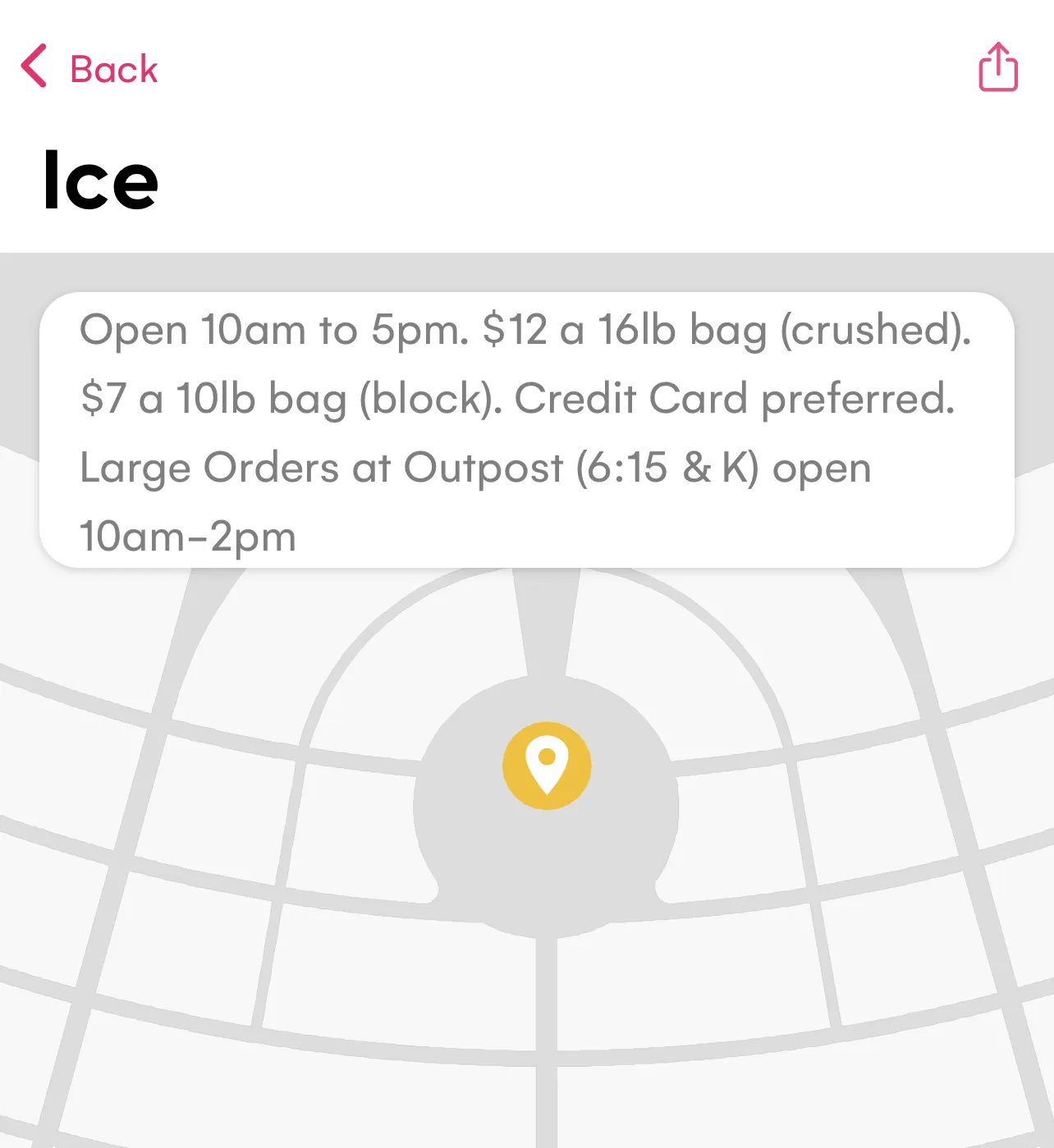
Ice

The Now button

Tap the Now button on the Home page to show a map of events happening in the next hour. Tap a camp or art to find out more. You can also tap Now in the Events tab to see events happening now.
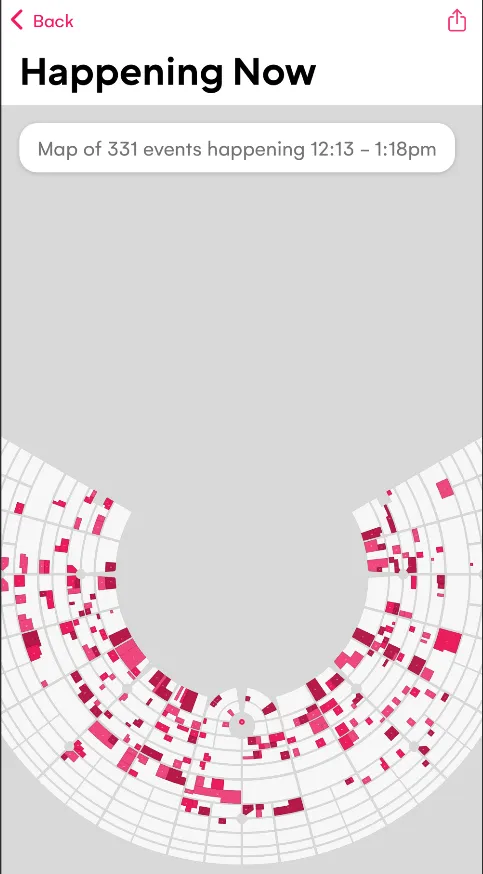
Now button

Friends

You can save where everyone is. From a camp detail page, tap the menu, then Add Friend. The modal opens pre-filled with the camp address. Type a name and save. Or from Home, tap the + plus in the Friends card, use the address picker to set a street and time, type a name, and save.

Friends camps are also synced to the Apple Watch.

Friends

Where you parked your bike

Every bike on the playa looks the same, especially at big sound camps. When you park, open Home, scroll to the Find card, and tap My Bike. Dust asks for your location once, drops a pin at your GPS, and confirms it saved. Later you walk straight back to it.

My bike

Reminders for shifts and private parties

If you have a Volunteer shifts or invite-only parties you can Tap + plus on the Reminders card on Home. Type a title, set a time , add an address and notes, then save. The reminder appears in the list and exports with your calendar. You'll also get a notification beforehand.

Reminders

Go offline

Before you leave home, open the Home tab, scroll to the Go Offline card, and tap the arrow. Dust downloads every image and audio file (these typically require cell service unlike events and text).

When you get to the burn toggle airplane mode - the app will start faster and use less battery.

Note: Cell service is needed to share favorites between friends, or to visit links.

Go offline

Apple Watch Support

The new Apple Watch feature puts your favorites on your wrist (available in v2.137 released August 24th).
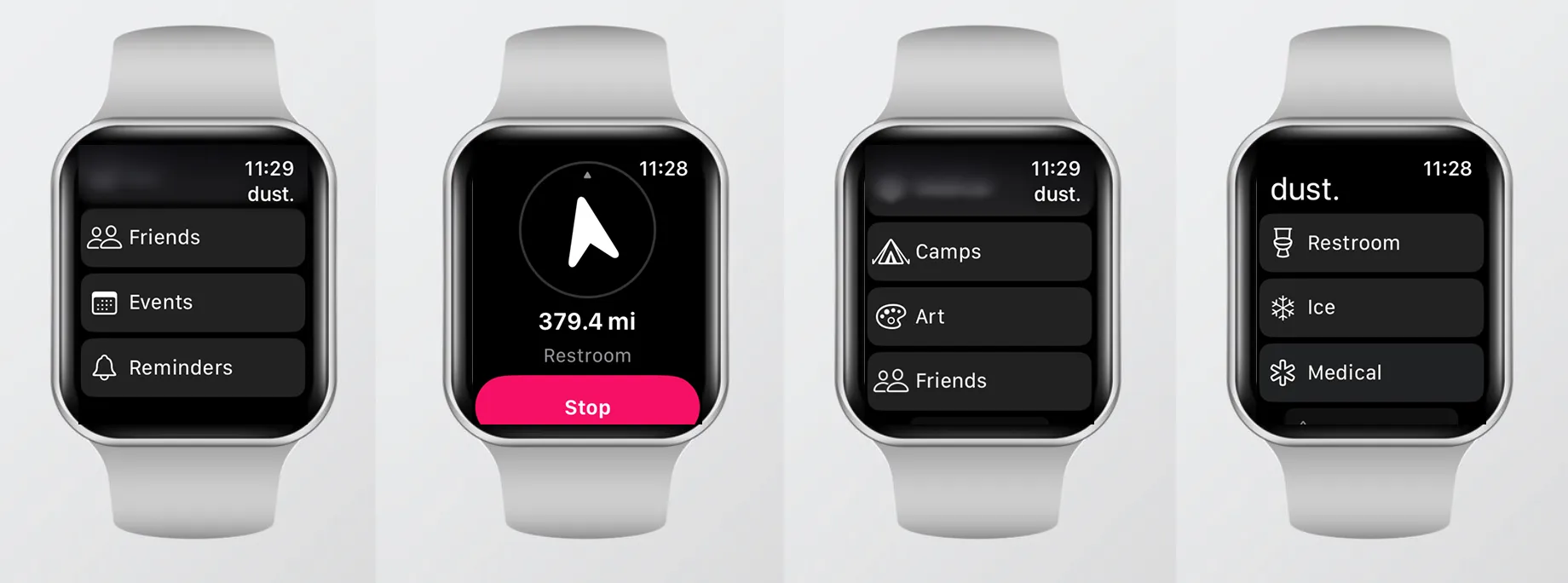
Apple Watch

The iPhone app copies from your Favorites to a paired watch.

Set it up

  1. Open the Favorites tab in the app on your iPhone.
  2. Tap the three-dot menu.
  3. Tap Update Watch.

The app copies your Favorites (Events, Camps, Art) plus the Restrooms, Ice, and Medical points to the watch.

What the watch does

The watch runs on its own GPS, so it works even when your iPhone is back at camp. From the list it picks the nearest Restroom, Ice, or Medical point, plus your favorite camps, art, friends, upcoming events and parties, and reminders.

Walk to something

Tap a destination on the watch and a compass needle appears. The needle rotates so that up on the screen is the way to walk. It shows the live straight-line distance and the destination name. The distance counts down as you move. When you get within about fifteen meters it flashes You've arrived and gives a haptic. Stop returns you to the list.

Tips

Run Go Offline at home on your Wi-Fi. The download is big and you want it done before you leave. Use Airplane mode. The app runs faster and the battery goes further. Mark your bike when you park. Camps and art locations unlock on Sunday when the gates open. Until then you only get approximate points for camps.

Get the App

Download dust from dust.events. Regional burns also use dust. Fuck your burn!

· 2 min read
Damian Tarnawsky

Burn organizers can now independently control whether mutant vehicle registration is open for their burn separate from art and camp registration.

What's New

A new Allow Mutant Vehicle Registration toggle has been added to the registration settings for each burn. When enabled, participants see the Register Mutant Vehicle option on the burn's home screen and can submit their art car directly through dust. When disabled, the mutant vehicle option is hidden and the art registration form defaults to art only.

This gives organizers precise control over their registration workflow. For example, you might want to open camp and art registration well before mutant vehicle registration, or you may run a burn that doesn't include mutant vehicles at all.

How to Enable It

  1. Go to Settings in the dust admin panel
  2. Open the Registration section
  3. Toggle on Allow Mutant Vehicle Registration
  4. Click Save

That's it. The Register Mutant Vehicle card will appear immediately on the burn's participant home screen for anyone who hasn't already registered one.

For Participants

When mutant vehicle registration is open for your burn, you'll see a Register Mutant Vehicle option alongside the usual camp and art registration cards. Tapping it takes you straight to the art registration form pre-set to the Mutant Vehicle type, so there's no guessing which type to choose.

If the organizer hasn't opened mutant vehicle registration yet, the option simply won't appear.

· 3 min read
Damian Tarnawsky

We're excited to announce a new feature for burn organizers: automatic content moderation. Dust can now scan camps, art, and events for potentially problematic content, helping you maintain a safe and welcoming environment for your community.

Why Moderation?

As your burn grows, manually reviewing every camp description, art piece, and event submission becomes increasingly difficult. With moderation enabled, Dust automatically scans content as it's submitted or changed, flagging anything that might need your attention.

What Gets Scanned?

Moderation reviews text content across:

  • Theme Camps - Names and descriptions
  • Art - Names and descriptions
  • Events - Titles and descriptions

Moderation Styles

You have full control over how moderation works for your burn. Choose from three options:

  • No moderation - Content is not scanned. You manually review everything.
  • Flag - Problematic content is flagged for your review, but remains visible in the dust app.
  • Flag and Hide - Problematic content is automatically hidden until you review it.

The "Flag" option is great if you want visibility into potential issues without censoring any content. "Flag and Hide" provides more protection by keeping questionable content out of the app until you've approved it.

Automatic Publishing

If you choose the Flag and Hide then content that is not flagged will be published automatically (done every 24 hours). Any content that is flagged will be hidden from the dust app. Additionally if you unapprove a camp or art piece it will also be hidden when published.

What Does It Detect?

Dust uses AI-powered moderation designed to detect:

  • Sexual content
  • Hate speech
  • Harassment
  • Self-harm content
  • Graphic violence
  • Threats and hostile language

Getting Started

  1. Go to Settings in your burn
  2. Find the Moderation option
  3. Choose your preferred moderation style
  4. Click Publish

That's it! From then on, all new and updated content will be automatically scanned. Any flagged content will also trigger an email to admins.

Review Flagged Content

When content is flagged, you'll see it marked in the Camps, Art, or Events list. You can then review the content and decide whether to edit it, or remove it. After saving a change to flagged content you will get a popup notifying you if the content is still flagged or not.

Flagged Content

For more details, check out the Moderation documentation.

We hope this feature helps you build a safer, more inclusive burn. As always, let us know what you think!

· 2 min read
Damian Tarnawsky

We've made significant improvements to how you import data into Dust. Whether you're bringing in theme camp and art data from spreadsheets or syncing locations from Google Maps, the new import tools give you better visibility and control.

CSV Import Preview

The CSV import for theme camps and art now shows a detailed preview before you commit to changes. Items are grouped into three categories:

  • New: Items that will be created
  • Updated: Existing items with changed fields (shows exactly which fields changed)
  • Existing: Items with no changes

This makes it easy to verify your import before applying it, and helps catch issues like duplicate entries or unexpected changes.

KML Import Preview

The KML import has been completely redesigned with a comprehensive preview system. When you import a KML file from Google Maps, you'll see:

  • Location Changes: Camps or art with updated coordinates
  • No Changes: Items where coordinates already matching what is in dust
  • New or Mismatching Items: Placemarks that don't match existing records (eg Theme Camps that are not in dust yet, or whose names don't quite match)
  • Items Not in File: Existing camps/art that are missing from the KML file
  • Restrooms and Other Placemarks: Special pins like restrooms and shuttle stops

The preview helps you identify naming mismatches between Google Maps and Dust, so you can fix them before importing.

Better Error Handling

Both import tools now provide clear error messages when something goes wrong:

  • File validation errors (empty files, invalid format)
  • Coordinate parsing issues

You'll know exactly what needs to be fixed before you can proceed.

Smart Matching

The import system uses intelligent matching to connect your data:

  • External IDs: Match by unique identifier for reliable updates
  • Name matching: Case-insensitive with fuzzy matching for minor variations
  • Handles variations: Ignores "Camp" prefixes, emojis, and special characters

Getting Started

Import options are available from the menu on the Camps and Art pages. For detailed instructions, check out the Art, Camps or Google Maps Import documentation.

We hope these improvements make managing your burn's data easier. Let us know what you think!